


Connecting an Old Canon Camera to a Computer: A 2026 Guide
A USB cable isn’t always the simplest way to get photos off an old Canon. The right method depends on the camera’s age, connection port and your computer, which can make connecting old canon camera to computer confusing when newer instructions don’t match your model.
If your computer doesn’t recognise the camera, it doesn’t necessarily mean your photos are stuck. A memory-card reader can be a practical alternative to a direct connection, while some cameras need a particular cable, USB setting or compatible version of Canon software.
This guide explains how to identify the best transfer method for your Canon and computer, then troubleshoot common connection problems. You’ll learn how to copy images while keeping the originals on your memory card until you choose to remove them. We’ll cover the details that matter most: finding the camera’s port, choosing between USB and a card reader, checking EOS Utility compatibility and what to try when the computer still won’t detect the camera.
Key Takeaways
- Before connecting an old Canon camera to a computer, identify the camera’s available connection options.
- Compare USB, a memory-card reader, EOS Utility and Wi-Fi to find an option that suits your camera and computer.
- Copy photos into a new folder before organising or deleting anything from the memory card.
- If the computer doesn’t recognise the camera, check the cable, USB port, camera power and storage card.
- Open the copied images and confirm they’re present before safely ejecting removable storage. Keep a separate backup copy.
Connecting an old Canon camera: what to identify first
An older Canon camera may still transfer photos perfectly well. The available options vary by model. One camera might connect directly by USB, another may be easier to use with a memory-card reader, and a model with compatible wireless features could transfer images without a cable.
Start with the exact camera model rather than guessing from its age or appearance. Models can use different ports, memory-card formats and software, and your computer’s operating system affects which Canon software version will work. Check the camera manual and Canon’s model-specific support information to match the camera with a suitable connection method before plugging it in.
Find the Canon model and its connection port
Look for the model name printed on the front or top of the camera, or on a label on its base. If it isn’t obvious, check the camera’s menu or information screens, where model details may be shown. Note the full name, including any letters or numbers after it. Similar-looking cameras can have different connection options.
Next, locate the port, usually behind a small cover on the camera body. Compare its shape with the illustrations in the manual for that exact model. Don’t force a plug that seems close but doesn’t fit. The manual can also identify the correct interface cable and the type of memory card the camera accepts. Canon’s Canon EOS system includes cameras from different generations, so general EOS instructions won’t necessarily apply to every older model or compact camera.
Choose between a cable, card reader and wireless transfer
Once you’ve identified the model and port, choose from the connection methods it supports:
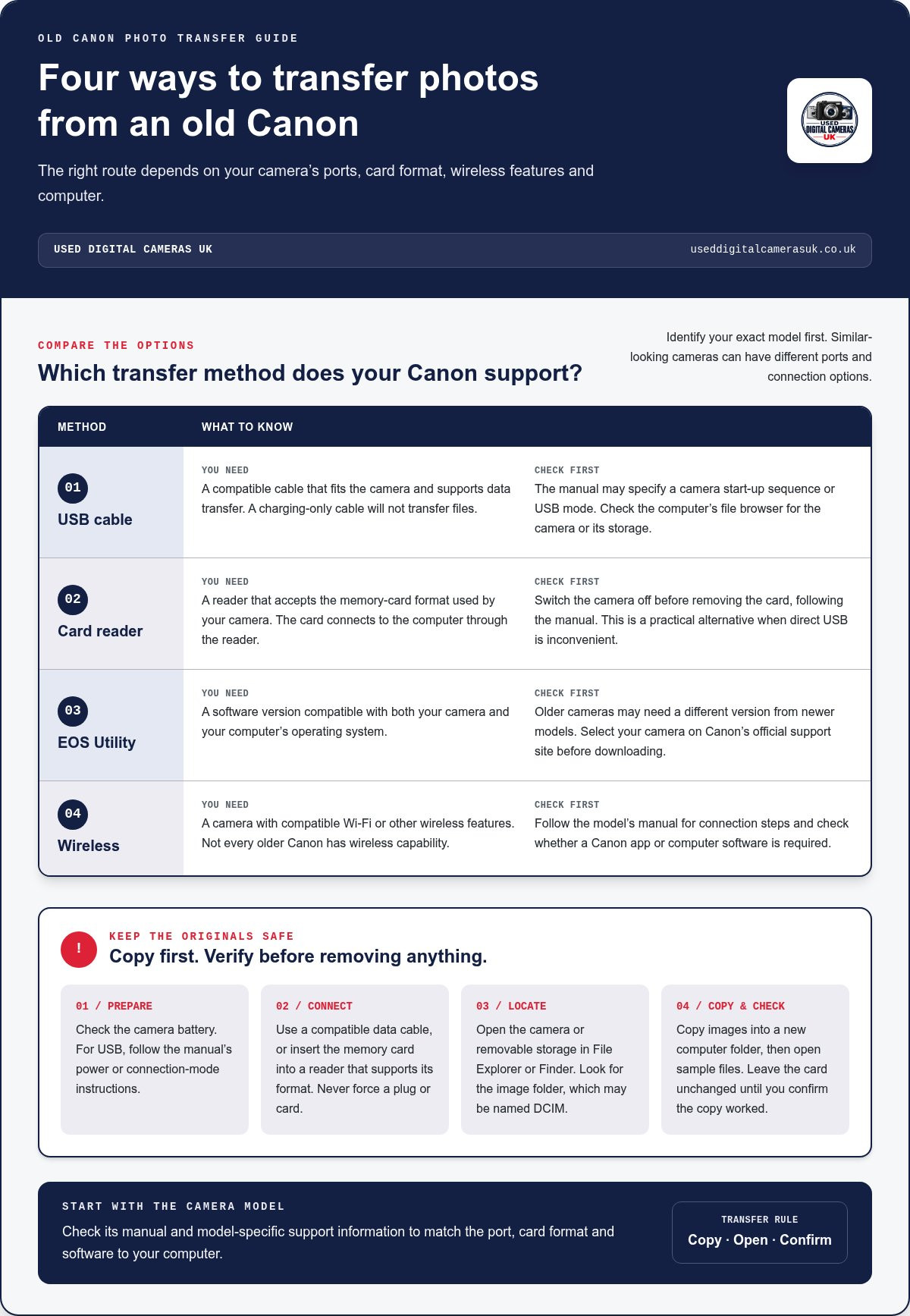
- USB cable: Connects the camera directly to a computer when both support a compatible connection. The camera may need to be switched on or set to a particular USB mode. Use the model’s manual to identify the correct cable and settings.
- Memory-card reader: Lets you remove the camera’s card and access it through a reader connected to your computer. This can be a straightforward alternative if a direct USB connection is inconvenient. Check that the reader accepts the card format used by your camera.
- Wireless transfer: Works only if the camera has compatible Wi-Fi or other wireless features. Check the manual for the connection steps and any required Canon app or computer software. Don’t assume an older camera has wireless capability.
For a USB transfer using Canon EOS Utility, the suitable version depends on both the camera and computer operating system. Older cameras may need a different software version from newer models, so select your camera on Canon’s official support site before downloading. Identify the model, check its port, then choose a supported transfer route.
How to transfer photos from an old Canon camera using USB or a card reader
Once you know which connection your Canon supports, transfer the images in a deliberate order. Keep the originals on the camera or memory card until you’ve copied the files and checked that they open on your computer. Consult the camera manual for model-specific instructions, especially if the camera has a USB connection setting or a particular start-up sequence.
Use this workflow for connecting an old Canon camera to a computer, whether you choose a cable or card reader:
- Prepare the camera. Check that the battery has charge. If using USB, follow the manual’s instructions for switching on the camera or selecting a connection mode. For a card reader, switch the camera off before removing the memory card.
- Connect the camera or card. Plug in a compatible data-transfer cable, or insert the memory card into a reader that supports its format. Don’t force a connector or card into place.
- Locate the images. Look for the camera, card or removable storage in File Explorer on Windows or Finder on a Mac. Open the storage and look for the image folder, which may be named DCIM.
- Copy the files. Create a new folder on your computer and copy the images into it. Avoid moving files or deleting anything from the card at this stage.
Connect the camera directly with USB
Use a cable that fits the camera’s port and supports data transfer. A charging-only cable may power the camera but won’t transfer files. Follow the manual to connect and switch on the camera if required, then check your computer’s file browser for the camera or its storage. If nothing appears, don’t assume the photos are missing. Try the card-reader route or work through the troubleshooting checks later in this guide.
Transfer photos with a memory-card reader
Turn the camera off before removing its card, following the manual’s instructions. Insert the card into a reader that accepts its format, then connect the reader to your computer. Open the card in the file browser and find the image folder. Copy, rather than move, the photos into your new computer folder, then open a few images to confirm the transfer worked.
Copy the original files first and verify them before removing camera storage. Check that the new folder contains the expected images and that sample files open correctly. Leave the card unchanged until you’ve confirmed the copy. This gives you a clear source to return to if a file didn’t transfer as expected.
If you’re considering a different camera for future photography, browse the used Canon digital camera range alongside your current setup.
Canon EOS Utility, Wi-Fi or a card reader: which connection method fits?
The best option depends on what your Canon model supports and how you want to transfer images. A USB cable may be enough for a straightforward copy, while EOS Utility provides Canon software for compatible EOS cameras. A card reader bypasses a direct camera connection, and Wi-Fi can be convenient if the camera has the right wireless features. No single method works with every model.
| Method | What it requires | Practical advantage | Common limitation |
|---|---|---|---|
| USB | A compatible data cable and a camera that supports computer connection | Connects the camera directly to the computer | The port, cable and camera settings vary by model |
| Card reader | A removable memory card and a reader that accepts its format | Reads the card without relying on a direct camera connection | You need to remove the card and use a compatible reader |
| EOS Utility | A compatible EOS camera, software version and computer operating system | Canon software can provide a dedicated image-transfer workflow | Support differs by camera and operating system |
| Wi-Fi | A camera with compatible wireless capability and the required setup | Transfers images without a cable or card removal | Not available on every model; setup involves extra steps |
Use the table as a starting point, then confirm the details for your exact model in its manual and Canon’s support information. This matters when connecting an old Canon camera to a computer, since similar-looking models can have different ports, software support or wireless options.
When EOS Utility is the right choice
Canon describes EOS Utility as image-transfer software for compatible EOS cameras. To check support, select your exact camera model on Canon’s official support website and review the downloads for your computer’s operating system. Don’t assume software made for an older camera will work just because your computer runs a newer system. Check the listed compatibility before installing.
Image transfer and remote shooting are separate uses. EOS Utility may support remote camera operation on compatible setups, but that feature depends on the camera and connection. If your goal is simply to copy photos, you may not need remote-shooting controls.
When a card reader or Wi-Fi is more practical
Consider a card reader if a direct USB connection is unavailable, awkward or unsuccessful. It can be a simple way to access a removable card, provided the reader supports its format. Wi-Fi is an option only when your camera offers the required wireless feature. Setup can involve camera menus, computer software and network steps, so a cable or reader may be more straightforward for a one-off transfer.
Computer not recognising an old Canon camera? Try these checks
A failed connection doesn’t mean your photos have disappeared. Work through these checks in order, starting with simple causes before changing settings or software. Keep the memory card as it is while troubleshooting. Don’t format it or delete originals, even if the computer appears to show no files.
First, separate the problem into three possibilities. The computer may not detect the camera at all; transfer software may not support the camera or operating system; or the camera may connect but the images aren’t where you expect. The checks below can help narrow down the issue.
Check the cable, port and camera settings
Confirm that the cable fits the camera’s port and supports data transfer, not just charging. Check that both ends are seated properly, but never force a connector. Plug it directly into another compatible USB port on the computer rather than using a hub. Then check the manual for the camera’s required power and USB connection settings.
- Check the camera and card. Make sure the battery has charge and that the memory card is seated correctly. If the camera has Wi-Fi or NFC, disable the wireless function before trying USB, as it may interfere with a wired connection.
- Check the connection mode. Some models have a USB setting in the menu, such as a PC connection mode. Follow the instructions for your exact model, then switch the camera on if the manual requires it.
- Restart and reconnect. Disconnect the cable, restart the camera and computer, then reconnect directly to an alternative USB port. This can help clear a temporary detection issue.
Check computer access and software compatibility
Before opening EOS Utility, look in File Explorer on Windows or Finder on a Mac for the camera or its storage. If it appears there but not in the software, focus on software compatibility. Select your exact Canon model on Canon’s support website and check the EOS Utility version and operating-system details listed for it.
If the camera isn’t detected, try the memory card in a compatible reader. If the card appears, copy the images to a computer folder and check that they open. This separate test helps distinguish a camera-to-computer connection problem from an issue with the card or files.
- Camera not listed: Recheck the cable, USB port, camera power and connection mode.
- Camera listed, software can’t connect: Check whether the software version supports both the camera and your computer’s operating system. A newer operating system doesn’t automatically make older software compatible.
- Storage appears, but photos don’t: Look through the card’s folders rather than assuming the camera has no images. Don’t format the card or delete files during this check.
On Windows, if the camera still isn’t recognised after the basic checks, you can try uninstalling its camera or MTP device entry in Device Manager and restarting the computer so Windows can reinstall the driver. If you’re considering another camera with a different setup, explore used Canon digital cameras.
Finish the transfer safely and keep using your Canon camera
A transfer isn’t complete just because the camera or card appeared on your computer. Before disconnecting anything, check that the copied files are present and open as expected. This final check helps protect your photos if you plan to reuse the card or try a different way of connecting an old Canon camera to a computer.
Work through these checks before removing the camera, cable or card reader:
- Compare the destination folder with the images you expected to copy. Check the folder contents and file names, and open a selection of photos.
- If you used a card reader, use your computer’s normal eject or safely remove process before unplugging it or taking out the card.
- If you connected the camera by USB, close any transfer window or software before disconnecting the cable. Follow the camera manual if it specifies a disconnection procedure.
- Keep a second copy of important photos on separate storage before clearing or reusing the camera card. A folder on the same computer is useful, but it isn’t a separate backup.
Verify and back up transferred photos
Open more than one file from the new folder, including images from different points in the camera roll if possible. This confirms that the files aren’t just visible as names, but can actually be opened. If a photo is missing or won’t open, leave the originals on the card and repeat the copy rather than deleting or formatting anything.
Once you’ve checked the files, make a separate backup before clearing the card. This could be another storage device or a backup location you already use. Keep the card unchanged until you’re satisfied that the images are present in both places.
Explore another Canon camera if you’re replacing yours
If your camera still takes the photos you want but one transfer method is awkward, try another supported route first. A card reader may work when direct USB does not, while a compatible cable or software version may resolve a model-specific connection issue. Check the manual and Canon support details for your camera before deciding that the camera itself no longer suits your needs.
If you’re considering a replacement instead, browse used Canon digital cameras and compare the options with the features and connection methods you need. The right choice depends on how you plan to use the camera and how you prefer to transfer and store your photos.
Keep the routine simple: copy, open and verify the files, make a separate backup, then safely disconnect the storage. That way, you can return to using your Canon with the originals protected, whether you stick with USB, switch to a card reader or use another method supported by your model.
Keep your Canon ready for the next photo
Getting an older camera working with your computer can help keep its photographs accessible and make the most of the equipment you already own. If connecting an old Canon camera to a computer has made you consider what you need from a future camera, think beyond the transfer method. Consider the type of photography you enjoy and the features that would support it.
For another Canon, Used Digital Cameras UK sells pre-owned cameras that are tested and supplied with a battery, charger and memory card. The online retailer has operated since 2003 and offers free shipping within the UK. These practical details can help you compare a camera that suits your next step.
Explore our used Canon digital cameras and compare models for your next photography project.
Frequently Asked Questions
Is every USB cable suitable for connecting an old Canon camera?
No. The plug must fit your camera’s port, and the cable must carry data as well as power. A cable that only charges devices may not let your computer access photos. Check the manual for your exact Canon model to identify the correct connection, and don’t force a connector that feels loose or doesn’t fit. If a direct cable connection isn’t practical, a compatible memory-card reader is another option.
Can I connect an old Canon camera to a Windows 11 computer?
Possibly, but it depends on the camera, the connection method and any software it needs. Try connecting by USB and check whether the camera or its storage appears in File Explorer. A compatible card reader is another way to access the images. For EOS Utility or other Canon software, check Canon’s support information for your specific camera and Windows 11. Older software may not install or work as expected.
Does Canon EOS Utility work with every Canon camera?
No. EOS Utility is designed for compatible Canon cameras, and the available functions can vary between models. Before downloading, select your exact camera on Canon’s support website and review the software listed for it and your computer’s operating system. If the software doesn’t suit your setup, you may still be able to copy photos using a compatible card reader, which accesses the memory card separately from EOS Utility.
Can I transfer photos without installing Canon software?
Yes, depending on the camera and computer. Some models may expose image files through a USB connection, so check the computer’s file browser before installing software. A compatible card reader offers another route by letting the computer read the memory card directly. The steps and folder names vary by model and operating system. Copy images into a new folder, then open a few files to check they transferred correctly.
Can an old Canon camera transfer photos over Wi-Fi?
Only if that specific camera supports a compatible wireless feature. Some older models don’t have Wi-Fi, while supported cameras may require you to enable a setting, install software or connect through a network. Check the camera’s model-specific manual before attempting setup, since wireless instructions for a newer Canon may not apply. If your model lacks wireless transfer, USB or a compatible memory-card reader may suit your computer instead.
Why does my computer show the Canon camera but not the photos?
The computer may recognise the camera as a device without displaying its images where you expect. Check the camera’s connection mode and manual, then confirm that its memory card is seated and contains photos. A compatible card reader can help establish whether the images are accessible directly from the card. Don’t format the card or delete files while investigating, and leave the originals untouched until you’ve verified a copy.
Should I remove the memory card while the camera is switched on?
No. Switch the camera off and follow its manual before removing the memory card. If the card is in a reader connected to your computer, use the computer’s safe-ejection process before unplugging the reader or taking out the card. First check that copied images open correctly, then keep a separate backup. Don’t delete photos or reformat the card until you’re confident the copies are complete and accessible.