


How to Transfer Photos from an Old Sony Camera: A Practical Guide
The easiest way to transfer photos from your old Sony camera may not involve an app at all. The right method depends on the camera’s ports and memory-card format, so a familiar-looking USB cable or card reader may not be compatible. If your computer or phone doesn’t recognise the camera, the photos may still be accessible from the memory card.
If you’re searching for “how to transfer photos from old sony camera”, start by identifying the camera and card before choosing a connection. This guide explains how to copy photos to a computer or phone using a card reader, a direct USB connection or a compatible wireless option. It also covers what to check if the camera or card isn’t detected.
You’ll learn how to choose the right equipment, copy the files and check that they open before reusing the card. A compatible connection and a careful file check are often all you need.
Key Takeaways
- Identify your Sony camera’s ports and memory-card format first. They determine which transfer options are suitable.
- Copy photos to a computer with a card reader that supports your memory card, then use straightforward file-copy steps.
- For a phone, compare compatible wireless options, a card reader with a suitable phone adapter, or copying via a computer.
- Troubleshoot detection problems methodically by checking the camera’s power, cable, connection mode, computer port and reader.
- Open several copied photos at full resolution and leave the original card unchanged until you’ve checked the new copies.
Before transferring photos from an old Sony camera, identify what you have
Older Sony photos can often be transferred with a compatible cable or card reader. The right option depends on your particular camera, so don’t assume every Sony model uses the same connection or software. Before plugging anything in, find the model name and check the card format and ports.
Look for the model number on the camera body, underneath or inside a battery or card compartment, or in the camera’s menu. The position varies between designs. Record the full model name, including its letters and numbers, so you can find instructions for that camera. Sony cameras have changed over time; its History of Sony Cameras offers broader context for the different generations and types you may encounter.
Quick checklist: note your camera model, memory-card type, destination device and available cable before choosing a transfer method.
Check the model, card and camera connections
Check the card itself or the label near its slot to identify its format. Older Sony cameras may use SD cards or Memory Stick formats, and the reader must support the card you have. Don’t assume a card will fit because it looks similar to another one. Check the format against the camera manual or Sony support.
Inspect the camera’s ports and any cables you already own. Compare their shape and markings with the manual, and don’t force a plug into a socket. A connector that looks similar may not fit or support file transfer. Checking first can help prevent damage and avoid choosing the wrong accessory.
Gather only the equipment your transfer route needs
The equipment depends on your chosen route. A direct connection needs a compatible, data-capable cable and a computer or phone that can connect to it. A card-reader route needs a reader that supports your camera’s card format, plus any adapter needed to connect it to your destination device.
- Direct camera connection: the camera, a compatible data cable and your destination device.
- Card-reader connection: the camera card, a matching reader and any adapter needed for the computer or phone.
Some cables charge a device but don’t transfer files. If a cable is unlabelled or you’re unsure what it does, check its details rather than relying on the connector shape. Check the destination device’s ports too: the reader or cable may need a separate adapter.
Before transferring, verify the model-specific cable, card format and connection requirements in the camera manual or Sony support. Gather only what your chosen route needs, and check the model’s supported options before installing software or trying an app.
How to transfer old Sony camera photos to a computer
A memory-card reader is often a straightforward way to copy photos, provided the reader and computer support the card format. It gives you access to the files without relying on camera software. Check the camera and card details before removing the card or choosing a reader.
Use a memory-card reader with Windows or macOS
Check that the reader has a slot for your camera’s card. Switch the camera off before removing the card, and handle it by the edges. Insert it into the reader, connect the reader to the computer, then look for the card in the file browser or a photo-import tool. Prompts and folder names vary, so don’t rely on one universal path.
- Power off the camera and remove the memory card carefully.
- Insert the card into a reader that supports its format, then connect the reader to the computer.
- Open the card in the computer’s file browser, or select it in a photo-import tool.
- Browse its folders for the image files. A folder may be called DCIM, but names and layouts vary by model.
- Select the files or folders you want, then copy them into a clearly named folder on the computer.
Copy the files rather than moving them. Copying creates a separate set on the computer, while deleting or formatting the card may remove the originals. When the transfer is finished, use the computer’s safe-eject option before removing the card from the reader.
Connect the camera to the computer by USB
If you don’t have a suitable reader, connect the camera directly with a compatible data cable. A cable that fits may only charge, so use one that supports file transfer. Switch on the camera and follow any connection prompt on its screen. Then check the computer’s photo-import tool or file browser to see whether the camera or card appears.
Some models offer more than one USB connection mode. If the computer doesn’t display the camera, or the camera asks you to choose a mode, check the model-specific manual or Sony support for the correct setting. Options may include modes such as Mass Storage or MTP, but availability and instructions vary. Use guidance for your exact model instead of changing settings at random.
Whichever route you choose, save the copied files in a folder you can find again, rather than leaving them among unrelated downloads. A folder named for the camera or photo date can make later sorting easier. Keep the card unchanged until you’ve confirmed the copies open correctly.
If you’re considering a different model, browse the used Sony digital cameras available.
Ways to transfer old Sony camera photos to a phone
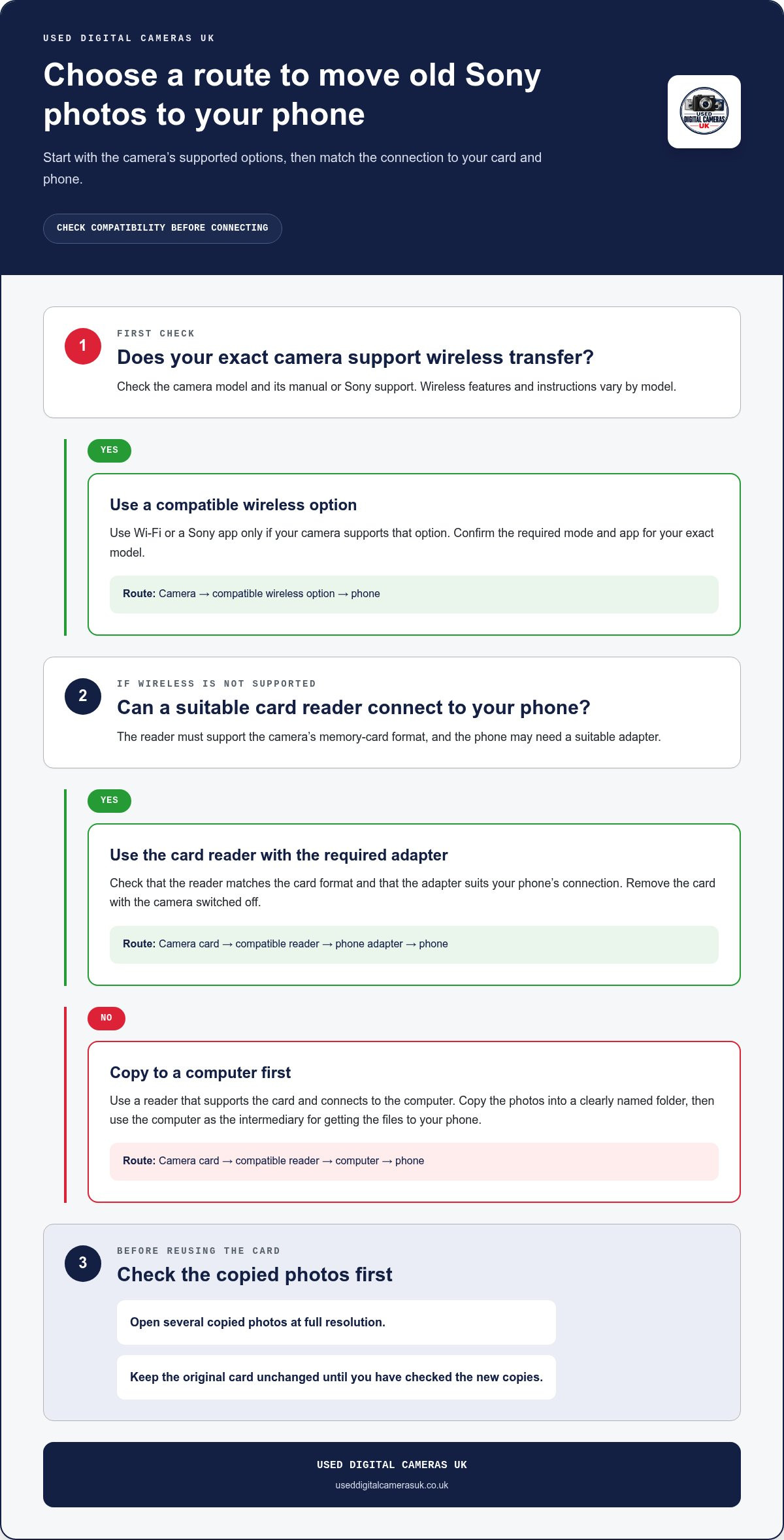
To transfer photos from an old Sony camera to a phone, first check whether the camera supports wireless transfer. If it doesn’t, a card reader and phone adapter may work, provided they suit both the card and phone. Copying the photos to a computer first is another option when a direct phone connection isn’t available.
| Route | Equipment | Compatibility check | Best fit |
|---|---|---|---|
| Wi-Fi or Sony app | Camera, phone and any required app | Confirm the exact model and supported app in current Sony guidance | A camera with a supported wireless feature |
| Card reader and phone adapter | Reader for the camera’s card, plus a phone adapter | Match the card format, reader connection and phone port | Moving files directly without a computer |
| Computer first | Computer, then a way to move files to the phone | Check the computer can read the card or connect to the camera | When a direct phone connection isn’t suitable |
Use Wi-Fi or a Sony app only when the model supports it
Wireless transfer isn’t available on every older camera. Search Sony support using the full model name and follow the instructions for that model, rather than assuming an app will connect. Sony’s app names and compatibility have changed over time: Imaging Edge Mobile replaced PlayMemories Mobile, whilst Sony recommends Creators’ App for products introduced from October 2022 onwards. Check current model guidance before installing an app or pairing the camera.
If the camera doesn’t have a supported wireless feature, use a physical transfer route instead. An app can’t add Wi-Fi capability to a camera that lacks it. Follow the camera’s pairing instructions and check that the phone and camera are using the required connection before importing photos.
Use a compatible card reader or transfer through a computer
A card reader can transfer files directly if it supports your camera’s memory-card format. Add a phone adapter only if it matches both the reader’s plug and the phone’s port. Phone connections vary, so check that the device can access files from an external reader. If it can’t, copy the images to a computer first, then move them to the phone using a connection or file service both devices support.
After connecting a reader, look for the card in the phone’s file-browsing or photo-import app. If it doesn’t appear, check the card seating, reader format and adapter connection one at a time. Don’t force connectors. Choose a transfer route based on the options supported by your camera and phone.
If you’re considering another camera with transfer options that suit your routine, explore used Sony digital cameras.
Fix common problems when an old Sony camera will not transfer photos
If a transfer fails, change one thing at a time. This helps narrow the cause to the camera, cable, memory card, reader or destination device. Don’t format the card or delete files during troubleshooting, even if a computer or import app offers that option. The original photos may still be intact.
When a computer does not recognise the camera
Start with the basics. Check that the camera has power, then reconnect it while switched on and follow any prompt on its screen. Try a cable known to support data transfer, not just charging, and test a different computer port. Connector types and camera requirements vary, so use the model’s manual rather than guessing which cable or USB mode it needs.
Work through these checks in order, testing the connection again after each one:
- Confirm the camera is switched on and has enough battery power to stay connected.
- Reconnect the cable securely at both ends, then follow the camera’s on-screen prompt.
- Try a known data-capable cable. A charging-only cable may power the camera without showing its files.
- Connect to another computer port, avoiding a hub if you can test a direct connection.
- If the camera still isn’t detected, remove the card with the camera switched off and test it in a compatible reader.
If the card reader shows the photos, you can read the card separately. This helps focus the next check on the camera connection, cable or USB setting. If neither route can read the card, leave it unchanged. Don’t repeat actions that prompt you to initialise, erase or format it.
When photos are missing, unreadable or fail to import
Open the card directly in a file browser and inspect its folders without moving, deleting or renaming anything. A photo-import tool may not display every file type, even when the files are present. RAW images, for example, may need compatible viewing software and can behave differently from JPEGs. Check whether the camera records one format or both, and try opening a copied file with software that supports it.
If the files appear on the card but an import fails, try copying a small selection through the file browser instead of using the import tool. If files are absent, produce error messages or won’t open, stop before changing the card. Note the exact message and consult the manual or Sony support information for your camera model. Model-specific guidance matters, especially when the camera offers different connection modes or file settings.
Once transfer problems are resolved, you can browse used Sony digital cameras if you’re considering a different model for your photography.
Check your transferred photos and keep a safe copy
A transfer isn’t complete just because files appear in a folder. Before reusing the memory card, check that the copies open and look as expected. This final check helps catch incomplete copies, unreadable files or images that appear only as thumbnails.
Verify the files before reusing the memory card
Keep the card unchanged while checking the new copies. Open several images from different dates or folders, rather than relying on a single successful example. View each at full resolution, not just as a thumbnail, and check that the image displays without an error or blank area.
Compare the copied folders with what you can see on the card. Check that the relevant folders and a representative selection of photos are present in the destination. Files may not appear in exactly the same way on every device: filenames can look different in an import app, thumbnails may take time to load, and RAW previews may need compatible software. A missing preview alone doesn’t always mean the photo file failed to copy.
Leave the original card unchanged until you’ve checked the copied files and made a safe second copy. Don’t delete images or format the card to make space until you’re confident the new versions open correctly. If a file won’t open, keep the original and investigate the file format or transfer before trying again.
Organise the archive and explore another Sony camera if needed
Once the files are verified, make a second copy on another storage device or a trusted backup service. Keep it separate from the computer where practical, so a problem with one device doesn’t leave you with only one set of photos. Give the main folder a clear name, then organise subfolders by date or occasion. Retain original filenames where they help you match files to the card or camera.
With the archive checked and backed up, you can return the card to the camera when you’re ready to use it again. There’s no need to replace a camera that still suits you. If you’re exploring another Sony model, pre-owned cameras from the retailer are tested and supplied with a battery, charger and memory card.
If you’d like to browse at your own pace, explore the used Sony digital camera range.
Keep your next photo project moving
Knowing how to transfer photos from an old Sony camera makes it easier to enjoy the pictures you’ve already taken and keep building your archive. Once your files are safely stored, you can decide what suits your photography next: keep using your current camera, organise a new project or explore a different model.
If you’re considering another camera, pre-owned models are tested and supplied with a battery, charger and memory card. UK shipping is free. There’s no need to replace a camera that still works for you, but browsing the range can help you compare options at your own pace.
Explore the camera collection to find a pre-owned camera for your next set of photographs. Keep enjoying the images you’ve recovered, and let your next photography project take shape when you’re ready.
Frequently Asked Questions
Do I need Sony software to transfer photos from an old Sony camera?
No. You can often copy files using your computer’s file browser or a photo-import tool. Sony software is an option, not a requirement for every model. PlayMemories Home has been succeeded by Imaging Edge Desktop, but compatibility can vary with older cameras. Check Sony’s model-specific guidance, and avoid downloading outdated software from unofficial sites.
Can I transfer photos from an old Sony camera if its battery is flat?
Yes, if you remove the memory card and use a compatible card reader, the camera doesn’t need to be powered during the transfer. Switch the camera off before taking the card out. A direct USB connection may not work if the camera needs power to switch on or maintain the connection. If you need USB, charge the battery first and follow the camera’s instructions.
Why are my old Sony camera photos not showing on my phone?
The phone may not recognise the reader, adapter or image format, even if the files are on the card. Check the phone’s file-browsing app as well as its photo gallery, since imported images aren’t always displayed in the same place. A RAW file may need a compatible viewer, while JPEGs are more widely supported. Also check that the adapter fits your phone’s port and supports data access.
Can I transfer photos from a Sony Memory Stick to a modern computer?
Yes, if you have a reader that supports the particular Memory Stick format used by your camera. Memory Stick, Memory Stick Duo and Memory Stick PRO Duo aren’t interchangeable in every reader, so check the card label and reader specifications. If the reader’s plug doesn’t match your computer, a suitable USB adapter may help. Don’t force the card into an SD slot.
Will transferring photos delete them from my old Sony camera?
Copying files leaves the originals on the memory card. However, some import tools offer a setting to delete items after importing, and moving files rather than copying them can remove them from the source. Read the import options before confirming, and leave any “delete after import” choice off if you want to keep the card’s photos. Don’t format or clear the card until you’ve checked your copies.
What should I do if my old Sony camera uses a cable my computer cannot connect to?
Check the camera model’s manual for its cable connection and transfer requirements. A compatible data cable and a suitable adapter for the computer’s port may provide a direct connection, but an adapter only changes the connector. It doesn’t make an incompatible cable transfer data. If a direct link isn’t practical, use a card reader that supports the camera’s memory-card format instead.